How to ask clients for a CSV or OFX instead of a PDF statement
A structured export saves you the clean-up that a PDF needs. Here is why, an email you can paste and send, and what to do when the bank only gives a PDF.
Why CSV or OFX beats PDF
- Signed amounts. A structured export usually carries one amount per row with its sign, or separate debit and credit columns. A PDF is a picture of a table; whether a figure is money in or money out can depend on a column position or a trailing "CR" or "DR" that must be read correctly.
- No reading errors. The values are already text. Nothing has to be recognised from a layout, and a scan cannot turn a 5 into a 6.
- A running balance you can test. When the export includes a balance column, or opening and closing balances, you can check that the rows add up before anything reaches the ledger.
- Less rework. Dates, descriptions and amounts arrive as separate fields, so there is less copying, re-typing and splitting of columns.
The two formats differ a little. CSV is a plain table that opens in any spreadsheet, but column names and date formats vary between banks. OFX is a standard layout for transactions that accounting software can usually import directly. Which one a bank offers, and what it calls the option, varies. Ask for either; take whichever is available. Our OFX to CSV page explains the format.
An email you can copy and send
Replace the parts in square brackets. The wording is deliberately generic, because every bank names and places its options differently.
Subject: Bank statement export for [account name], [start date] to [end date]

Hi [client name],

For the bookkeeping I need the transactions for [account name / last
4 digits] from [start date] to [end date].

Please send them as a CSV or OFX file instead of a PDF if your online
banking offers one. Look for an option called something like
"Download", "Export" or "Statements", often near the list of
transactions. Choose CSV or OFX as the file type, set the date range
above, and send me the file as it is, without opening and re-saving it.

If you can only see PDF, send that instead; it is fine.

If you get stuck, send me a screenshot of the screen where you are and
I will tell you which option to choose. Please hide anything that is
not needed, such as the account number.

Thank you,
[your name]
Two small points. Ask for the exact period you need, with a few days of overlap if the month boundaries matter to you, since overlaps are easy to remove later. And ask the client to send the file untouched: opening a CSV in a spreadsheet and saving it again can change dates and long numbers.
If the bank only offers PDF
Ask for the PDF statement and carry on; many accounts offer nothing else. Then open Tallyscope and add the PDF. It turns the statement into a table and checks the rows against the running balance, flagging any row that does not add up. Statements are read in your browser tab and are not uploaded, which matters when the file belongs to a client. The network uses that do exist are listed on converting without uploading. For photographed or scanned pages, see scanned statements to Excel; and if the PDF needs a password, see password-protected statements.
Getting the checked rows into your accounting software
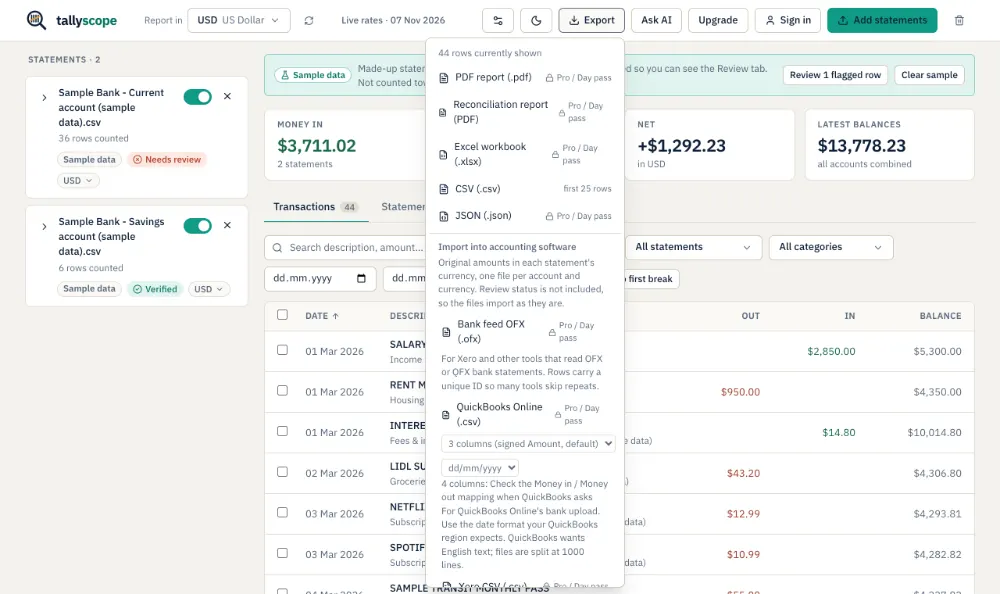
Once the statements are in one table, Tallyscope exports OFX, QuickBooks CSV and Xero CSV files that you can import into Xero, QuickBooks and similar tools. It has no live connection to them. These three files carry no review notes, so deal with flagged rows first. The Excel, CSV, PDF and JSON exports keep each row's status and review note, and a reconciliation report (PDF, plus an Excel sheet) records how each statement checked out. These exports are part of the Day pass and Pro plans; see pricing.
Checklist before you book anything
Whatever the format, test the file before the transactions go into the books.
Synthetic statement, opening balance 2,000.00: the check marks the first row that breaks
| Date | Description | Amount read | Printed balance | Expected balance | Check |
|---|---|---|---|---|---|
| 03 Mar | Invoice 1041 | +450.00 | 2,450.00 | 2,450.00 | ✓ Proven |
| 05 Mar | Office supplies | -82.30 | 2,367.70 | 2,367.70 | ✓ Proven |
| 09 Mar | Rent | -900.00 | 1,467.70 | 1,467.70 | ✓ Proven |
| 12 MarFirst break | Software subscription | -49.00 | 1,368.70 | 1,418.70 | ✗ First break |
| 13 Mar | Coffee | -4.50 | 1,364.20 | 1,364.20 | ✓ Proven |
- Opening balance plus movements equals closing balance, to the cent. Add all money in, subtract all money out, and compare with the closing balance on the statement. A difference of even one cent means a row is missing, duplicated or has the wrong sign.
- Row count. Compare the number of rows with what the statement or the bank screen shows, where it gives a count. Multi-page statements are where rows go missing.
- Duplicates. If periods overlap, or a file was sent twice, the same transaction can appear twice. Look for rows with the same date, amount and description. Two identical payments on one day can be genuine, so check before deleting.
- Numbers stored as text. If amounts are left-aligned in your spreadsheet, or a sum comes out as zero, they are text. Thousands separators, decimal commas and a trailing minus sign are the usual causes.
- Dates. Confirm that day and month were not swapped, for example 03/04 read as 4 March instead of 3 April. Check that the first and last dates fall inside the period you asked for.
- Sign of the amounts. Pick one payment and one receipt and check that they have the sign you expect.
Tallyscope runs the first checks for you and gives each statement a status; see how verification works for what the checks prove and what they do not. It does not replace your own review of the rows. To handle several accounts or months together, see merging bank statements.
Frequently asked questions
Is CSV or OFX better?
Either is better than a PDF. CSV opens in any spreadsheet but column names and date formats differ between banks. OFX has a standard layout that accounting software can often import directly. Use whichever the client's bank offers.
What if the client cannot find the export option?
Ask for a screenshot of the screen they are on, with sensitive details hidden, and point them to areas usually named something like Download, Export or Statements. If there is no option, ask for the PDF instead.
Can I use a PDF statement for bookkeeping?
Yes. A PDF can be converted to a table and checked against its balances, but a structured export avoids the conversion step and any reading errors.
Why should the client not re-save the CSV?
Opening and saving a CSV in a spreadsheet can change date formats and shorten or reformat long numbers. Sending the downloaded file untouched keeps the original values.
Are client files uploaded when I convert a PDF in Tallyscope?
No. Statements are read in your browser tab and are not uploaded. The few exceptions are listed on the converting-without-uploading page.